
Nothing ruins a clutch gaming moment faster than a sudden spike in latency. One second you are tracking your target, and the next, your character teleports backward, or your inputs stop registering completely.
If you are constantly battling lag, you are likely dealing with two major networking issues: high ping and packet loss.
Fortunately, you do not need to be a network engineer to fix these issues. In this comprehensive guide, we will break down exactly how to fix high ping in online games and eliminate packet loss so you can get back to smooth, competitive gameplay.
What is the Difference Between High Ping and Packet Loss?
Before diving into the solutions, it helps to understand what is happening behind the screen.
- Ping (Latency): Measured in milliseconds (ms), ping is the time it takes for a data packet to travel from your gaming device to the game server and back. A lower ping means a faster response time.
- Packet Loss: This occurs when data packets traveling between your device and the server fail to reach their destination. It results in rubberbanding, freezes, and actions not registering at all.
While high ping slows your connection down, packet loss actively breaks it. Let’s look at the best ways to fix both.
1. Ditch Wi-Fi and Switch to an Ethernet Cable
The absolute number one cause of packet loss and unstable ping in online gaming is playing over a wireless Wi-Fi network.
Even if you have the fastest fiber-optic internet plan, Wi-Fi signals are prone to interference from walls, household appliances, and other wireless devices in your home. This interference causes drops in data transmission, leading directly to packet loss.
How to fix it:
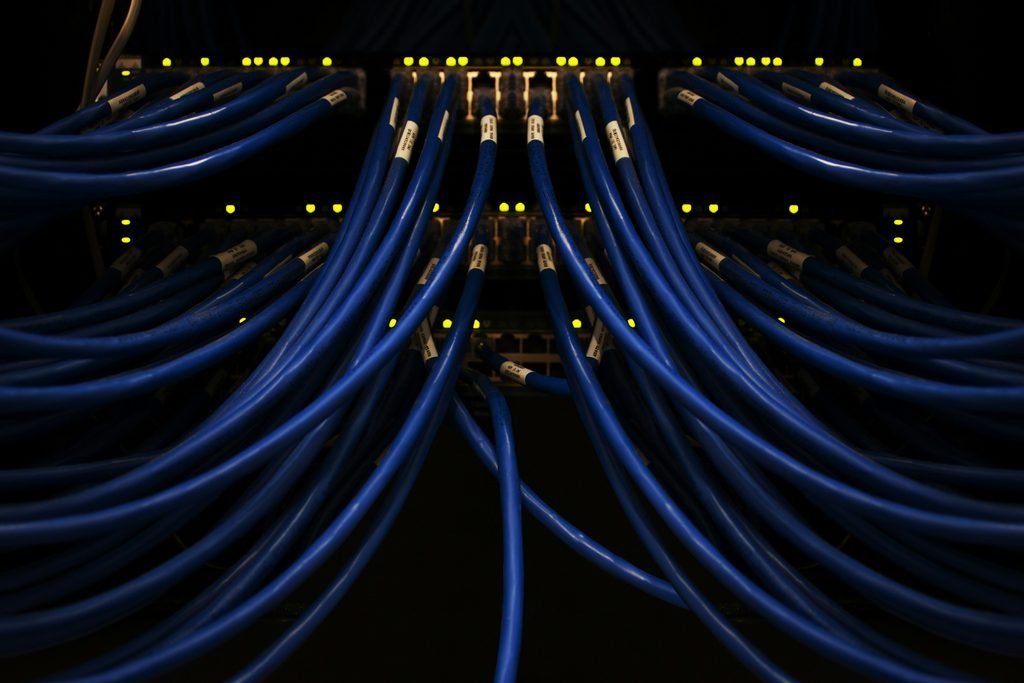
Connect your PC or gaming console directly to your router using a Cat6 or Cat7 Ethernet cable. A wired connection provides a dedicated, uninterrupted lane for your gaming data, instantly stabilizing your ping and wiping out packet loss.
2. Change Your DNS Servers for Better Routing
Your Internet Service Provider (ISP) automatically assigns you a default DNS server, which is often slow and poorly optimized for gaming traffic. Switching to a premium, free public DNS can dramatically improve how your data is routed to global game servers.
How to lower ping via DNS on Windows 11:
- Open Settings and go to Network & Internet.
- Click on Wi-Fi or Ethernet (depending on your connection) and select Hardware properties.
- Next to DNS server assignment, click Edit.
- Change the setting from Automatic (DHCP) to Manual, and turn on IPv4.
- Enter one of the following ultra-fast gaming DNS addresses:
- Google Public DNS: Preferred:
8.8.8.8| Alternate:8.8.4.4 - Cloudflare DNS (Recommended for Gaming): Preferred:
1.1.1.1| Alternate:1.0.0.1
- Google Public DNS: Preferred:
- Click Save and restart your computer.
3. Enable Network Quality of Service (QoS) on Your Router
If someone else in your house is streaming 4K movies or downloading massive files while you are trying to play, your gaming traffic gets pushed to the back of the line. This causes massive ping spikes.
Most modern routers have a feature called QoS (Quality of Service), which allows you to tell the router to always prioritize gaming data over everything else.
How to enable QoS:
- Open your web browser and type your router’s IP address (usually
192.168.1.1or192.168.0.1). - Log in using your router’s admin credentials (found on the back of the router).
- Look for a tab named QoS, Bandwidth Control, or Game Acceleration.
- Turn on QoS and add your gaming PC or console as the highest priority device.
4. Advanced Network Routing: Demystifying BGP Loops and ISP Bottlenecks
Sometimes, you can have a perfect physical installation with fiber optic wires and clean local settings, yet your game still experiences high ping. This happens because of a backend system protocol anomaly called bad BGP (Border Gateway Protocol) routing.
Your ISP doesn’t always send your gaming data packets via the shortest geographical path. Instead, to save infrastructure costs, they route your packets through cheaper data hubs. If your data loops from your home station, travels to a different state, and then goes to the game server, your latency spikes instantly.

How to isolate and force optimal routing paths:
If your ISP has corrupted routing lanes to a specific game cluster (like Activision or Riot servers), you can deploy a gaming VPN or GPN (Gamers Private Network) like ExitLag or NoPing. These tools bypass your ISP’s slow routing checkpoints, forcing your connection onto dedicated, high-speed fiber channels directly linked to the game hubs. This stabilizes packet delivery and minimizes network jitter behind the screen.
5. Windows Registry Tweaks: Disabling Nagle’s Algorithm for Instant Response
By default, Windows operating system environments deploy a protocol layer called Nagle’s Algorithm. This mechanism is designed to bundle small data packets together into a single larger batch before sending them across the network, which optimizes general web browsing bandwidth.
However, in online multiplayer games, waiting for packets to bundle causes terrible artificial processing delays (high latency). You need every single command to fire across the network stack instantly.
Tweaking TCP ACK Frequency via Registry Editor:
- Press Windows Key + R, type
regedit, and hit Enter to launch the Registry Editor. - Navigate to this parameter corridor path:
HKEY_LOCAL_MACHINE\SYSTEM\CurrentControlSet\Services\Tcpip\Parameters\Interfaces\ - Inside this folder, click through the sub-keys (random strings of numbers and letters) until you find the one that contains your primary internet connection’s IP configuration entries.
- Right-click on an empty space in the right panel, select New > DWORD (32-bit) Value, and name it exactly
TcpAckFrequency. Double-click it and change the value data to1. - Create another DWORD (32-bit) Value, name it exactly
TCPNoDelay, change the value data to1, click OK, and restart your machine.
This forces Windows to transmit every single gaming packet immediately without waiting for buffer chains.
6. Flush Your DNS Cache and Renew Your IP
Over time, your operating system saves data about network locations in its cache. If this data becomes corrupted or outdated, it can mess with your connection stability to multiplayer servers. You can easily clear this out using the Windows Command Prompt.
Step-by-Step Flush:
- Press the Windows Key, type
cmd, right-click on Command Prompt, and select Run as administrator. - Type
ipconfig /flushdnsand press Enter. - Type
ipconfig /releaseand press Enter. - Type
ipconfig /renewand press Enter. - Finally, type
netsh winsock resetand press Enter.
Restart your PC after this process. This completely refreshes your network stack and can drastically reduce gaming lag.
7. Close Background Apps Eating Your Bandwidth
Sometimes, the culprit isn’t your internet provider; it is your own computer. Apps running in the background can quietly steal your bandwidth and processing power.
Before launching a competitive match, make sure to completely close:
- Cloud storage apps (OneDrive, Google Drive syncing)
- Digital storefronts running background updates (Steam, Epic Games Launcher, EA App)
- Communication software with hardware acceleration turned on (Discord, Skype)
You can press Ctrl + Shift + Esc to open the Task Manager and click on the Network column to see exactly which app is draining your connection.
Final Thoughts: When to Contact Your ISP
If you have switched to an Ethernet cable, flushed your DNS, and enabled QoS, but you are still seeing massive packet loss icons on your screen, the issue likely lies with your Internet Service Provider. There could be a degraded line outside your house or bad routing on their end.
Give them a call, explain that you are experiencing high packet loss during specific hours, and ask them to test your line stability from their hub.
Sometimes, high latency isn't just about your router—outdated mobile hardware can also struggle with heavy packet loops. If you are gaming on a budget, take a look at the top 7 best smartphones under 350 dollars to buy today for a powerful, lag-free performance.
Pingback: Top 5 Free AI Video Generators for Content Creators (No Watermark)
Pingback: Why Your Smart TV is Slow (And 5 Easy Ways to Speed It Up Instantly)
Pingback: How to Free Up System Data Storage on Your Mac Instantly
Pingback: Why is My MacBook Battery Draining So Fast? (Hidden Causes & Fixes)
Pingback: How to Recover Permanently Deleted Files on Windows Without Paid Software
Pingback: Ultimate Desktop Customization Ideas for Peak Productivity – TechVibeFinds
Pingback: How to Start a Tech Blog in 2026: A Step-by-Step Guide – TechVibeFinds